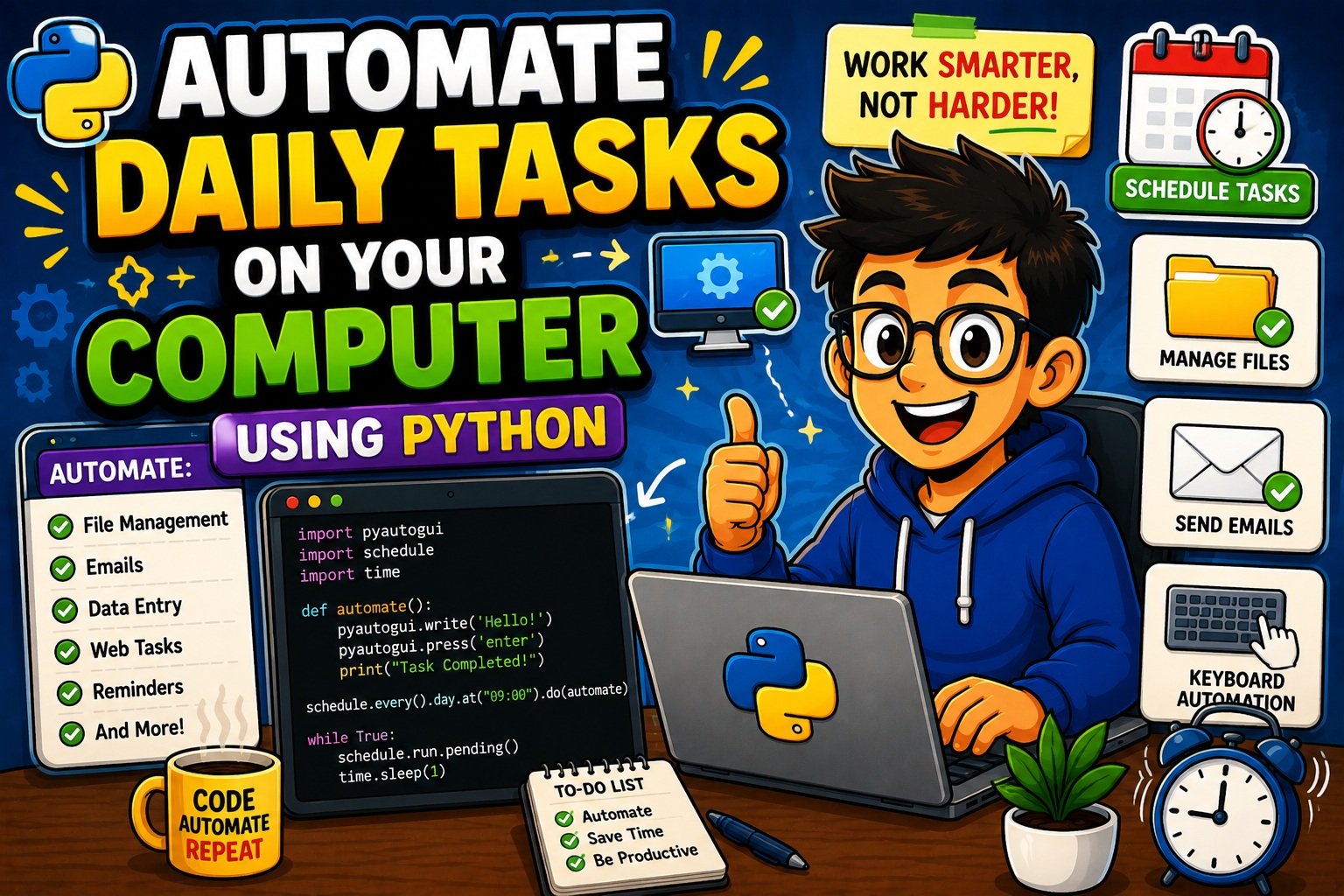
How to Automate Daily Tasks on Your Computer Using Python (Beginner’s Guide 2026)
Have you ever stared at your screen, copying the same data into the same spreadsheet for the fifth time this week and thought, “There has to be a better way”?
There is. And it is called Python automation.
Whether you spend your mornings sorting files, sending the same update emails, or renaming hundreds of documents one by one — Python can do all of that for you while you drink your coffee. The best part? You do not need to be an experienced developer to get started.
This beginner’s guide will show you exactly how to automate daily tasks on your computer using Python — from setting up your environment to writing real scripts that save you hours every week. By the end of this post, you will have working automation scripts and a clear roadmap for going further.
Let us get into it.
What Is Python Automation?
Python automation means writing a Python script once and letting it handle a repetitive task automatically — without you lifting a finger.
Think of it like setting your coffee maker on a timer. You do the setup once. Every morning after that, the machine runs on its own.
The same idea applies to your computer. Instead of manually renaming 300 image files, you write a Python script that does it in under a second. Instead of copy-pasting weekly reports into an email, a script sends that email automatically every Monday at 8:00 AM.
Python is particularly well-suited for automation because:
- Its syntax is clean and readable, making it approachable for beginners
- It has a massive library ecosystem — there is a library for almost every automation task you can think of
- It runs on Windows, macOS, and Linux without modification
- It is free and open-source, backed by a huge community
If you are just getting started with Python, a great first step is understanding how to interact with users through code. Check out this guide on how to take user input in Python before you write your first automation scripts.
Why Automating Daily Tasks Matters in 2026
The average knowledge worker spends between 2 to 3 hours every day on tasks that are repetitive, predictable, and perfectly suited for automation. Over a year, that adds up to weeks of lost time.
Here is why automation is one of the most valuable skills you can build right now:
Save Time Every Single Day
If a task makes you sigh before you start it, it is probably ready to be automated. File sorting, report generation, sending update emails, renaming downloads — all of these can be scripted and scheduled to run without you.
Eliminate Human Error
Computers do not get distracted, tired, or accidentally skip a row. Automated scripts execute the exact same logic every single time. No missed cells, no forgotten attachments, no copy-paste mistakes.
Build a Skill That Pays
Automation skills are increasingly in demand across every industry — from marketing and finance to healthcare and engineering. Knowing how to write automation scripts makes you genuinely more valuable at work.
Free Up Your Mental Energy
The biggest win is not just saving time — it is no longer thinking about those tasks. When a script handles your daily file backup at 11 PM automatically, you do not have to remember to do it. Your mental space is freed for actual creative work.
It Scales for Free
A script that processes 10 files processes 10,000 files just as easily. Human effort scales linearly — automation scales exponentially.
Best Python Libraries for Automation in 2026
Before writing any scripts, you need to know which tools are available. Here are the most important and widely used Python automation libraries as of 2026:
| Library | What It Does |
|---|---|
os | Interact with the operating system — files, folders, paths |
shutil | High-level file operations — copy, move, delete, zip |
pathlib | Modern, clean file path handling (preferred over os.path) |
smtplib | Send emails through SMTP |
schedule | Simple task scheduling — run functions at set times |
APScheduler | Advanced scheduling — timezones, cron expressions, persistent jobs |
PyAutoGUI | Control mouse and keyboard; take screenshots |
requests | Fetch data from websites and APIs |
BeautifulSoup | Parse and extract data from HTML pages |
openpyxl | Read and write Excel .xlsx files |
pandas | Powerful data manipulation and analysis |
Playwright | Modern browser automation (more efficient than Selenium) |
pywin32 | Windows-specific automation tasks |
Key 2026 note: Playwright has largely replaced Selenium for browser automation in modern workflows because it uses significantly less memory — roughly 450MB vs. 1.4GB for five concurrent browser instances. If you need browser-level automation, Playwright is the better choice today.
For anyone working with data files and spreadsheets, the Pandas tutorial for beginners is an excellent companion resource to this guide.
Setting Up Python for Automation (Step-by-Step)
Before writing any script, let us make sure your environment is ready.
Step 1 — Install Python 3.12 or Later
Download the latest Python release from the official Python website. During installation on Windows, check the box that says “Add Python to PATH” — this is a common beginner mistake that causes issues later.
Verify your installation by running:
python --version
You should see something like Python 3.12.x.
Step 2 — Install a Code Editor
Visual Studio Code is the most beginner-friendly editor for Python. Install the official Python extension from Microsoft inside VS Code for syntax highlighting, autocomplete, and debugging support.
Step 3 — Create a Virtual Environment
A virtual environment keeps your project’s libraries isolated from other projects on your system. This is good practice even for small automation projects.
python -m venv myenv
Activate it:
- Windows:
myenv\Scripts\activate - Mac/Linux:
source myenv/bin/activate
Step 4 — Install the Libraries You Need
pip install pyautogui schedule requests openpyxl beautifulsoup4
Step 5 — Write and Run Your First Script
Create a new file called hello_automation.py and add this:
from datetime import datetime

now = datetime.now()
hour = now.hour

if 5 <= hour < 12:
    greeting = "Good morning"
elif 12 <= hour < 17:
    greeting = "Good afternoon"
else:
    greeting = "Good evening"

print(f"{greeting}! Your automation journey starts now.")
print(f"Current time: {now.strftime('%Y-%m-%d %H:%M:%S')}")
Run it with:
python hello_automation.py
If you run into errors, do not panic — they are a normal part of learning. The guide on how to debug Python code step by step will walk you through fixing them. And if you see an IndentationError, this quick fix guide on how to fix IndentationError in Python will sort it out in minutes.
Automating File and Folder Management
File management is one of the most immediately useful places to start with automation. Most people’s Downloads folders are digital chaos — and Python can bring order to that chaos automatically.
Auto-Organize Your Downloads Folder
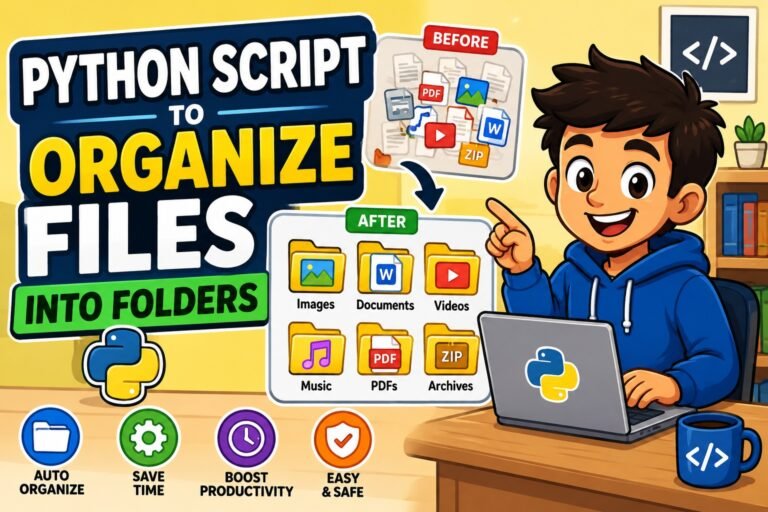
This script scans your Downloads folder and moves files into subfolders based on their type — documents, images, audio, video, and more.
import os
import shutil

# Define the Downloads folder path
downloads = os.path.expanduser("~/Downloads")

# Map file extensions to folder names
categories = {
    "Images": [".jpg", ".jpeg", ".png", ".gif", ".webp", ".svg"],
    "Documents": [".pdf", ".docx", ".txt", ".xlsx", ".pptx"],
    "Audio": [".mp3", ".wav", ".aac", ".flac"],
    "Video": [".mp4", ".mov", ".avi", ".mkv"],
    "Archives": [".zip", ".rar", ".tar", ".gz"],
    "Code": [".py", ".js", ".html", ".css", ".json"],
}

for filename in os.listdir(downloads):
    file_path = os.path.join(downloads, filename)

    # Skip directories
    if os.path.isdir(file_path):
        continue

    ext = os.path.splitext(filename)[1].lower()

    for folder, extensions in categories.items():
        if ext in extensions:
            dest_folder = os.path.join(downloads, folder)
            os.makedirs(dest_folder, exist_ok=True)
            shutil.move(file_path, os.path.join(dest_folder, filename))
            print(f"Moved: {filename} → {folder}/")
            break

print("Downloads folder organized!")
Run this script once, and every file in your Downloads folder will be neatly sorted in under a second.
Batch Rename Files
Renaming hundreds of files manually is painful. Python makes it effortless.
import os

folder = "/path/to/your/photos"
prefix = "vacation_2026_"

for index, filename in enumerate(os.listdir(folder)):
    ext = os.path.splitext(filename)[1]
    new_name = f"{prefix}{index + 1:04d}{ext}"
    os.rename(
        os.path.join(folder, filename),
        os.path.join(folder, new_name)
    )
    print(f"Renamed: {filename} → {new_name}")
This renames every file in a folder with a numbered prefix — perfect for photo collections, exported reports, or any batch of files that need consistent naming.
Auto-Backup Important Files
import shutil
import os
from datetime import datetime

source_folder = "/path/to/important/folder"
backup_root = "/path/to/backups"

# Create a timestamped backup folder
timestamp = datetime.now().strftime("%Y-%m-%d_%H-%M")
backup_dest = os.path.join(backup_root, f"backup_{timestamp}")

shutil.copytree(source_folder, backup_dest)
print(f"Backup complete: {backup_dest}")
Schedule this script to run nightly (covered in the scheduling section below) and you will never lose important files again.
For deeper understanding of how Python handles files, the guide on how to read and write text files in Python is a great resource to build your foundation.
Automating Mouse and Keyboard Actions with PyAutoGUI
GUI automation means writing Python code that controls your mouse and keyboard — just as if a human were clicking and typing. This is incredibly useful for repetitive form filling, data entry, and automating desktop apps that have no API.
Install PyAutoGUI first:
pip install pyautogui
Basic Mouse Control
import pyautogui
import time

# Move the mouse to coordinates (500, 300) over 1 second
pyautogui.moveTo(500, 300, duration=1)

# Click at the current position
pyautogui.click()

# Right-click
pyautogui.rightClick()

# Double-click
pyautogui.doubleClick()
Automating Keyboard Input
import pyautogui

# Type text naturally with a 0.05 second delay between characters
pyautogui.typewrite("Hello from Python automation!", interval=0.05)

# Press a key
pyautogui.press("enter")

# Hold a key combination
pyautogui.hotkey("ctrl", "s")  # Save a file
Taking Automatic Screenshots
import pyautogui

screenshot = pyautogui.screenshot()
screenshot.save("screenshot_2026.png")
print("Screenshot saved!")
⚠️ Safety Tip — Always Enable the Fail-Safe
PyAutoGUI has a built-in safety feature: if you move your mouse to any corner of the screen, the script stops immediately. This is enabled by default, but always keep it on:
import pyautogui
pyautogui.FAILSAFE = True  # Move mouse to corner to stop the script
This is essential — without it, a runaway automation script can take control of your mouse and be very difficult to stop.
Sending Emails Automatically with Python
Automating emails is one of the most practical and frequently requested Python automation tasks. Whether it is a daily summary report, a deadline reminder, or a weekly digest — Python can handle it.
How Python Sends Emails
Python uses the built-in smtplib library to connect to an email server (like Gmail) and send messages programmatically.
Setting Up Gmail for Python in 2026
Since Google disabled “less secure app” passwords years ago, you need to use an App Password:
- Go to your Google Account → Security
- Enable 2-Step Verification
- Under “2-Step Verification,” scroll to App Passwords
- Generate a new App Password for “Mail” and “Windows/Mac/Linux”
- Copy the 16-character password — you will use this in your script
Sending a Basic Email
import smtplib
from email.mime.text import MIMEText
from email.mime.multipart import MIMEMultipart
import os

sender = "your_email@gmail.com"
receiver = "recipient_email@gmail.com"
app_password = os.environ.get("GMAIL_APP_PASSWORD")  # Load from environment variable

message = MIMEMultipart()
message["From"] = sender
message["To"] = receiver
message["Subject"] = "Daily Automation Report"

body = "Hello! This is your automated daily summary. Python sent this for you."
message.attach(MIMEText(body, "plain"))

with smtplib.SMTP("smtp.gmail.com", 587) as server:
    server.starttls()
    server.login(sender, app_password)
    server.sendmail(sender, receiver, message.as_string())

print("Email sent successfully!")
Important: Never paste your password directly into the script. Always load it from an environment variable (shown above) or a .env file.
Sending Emails with Attachments
import smtplib
import os
from email.mime.multipart import MIMEMultipart
from email.mime.text import MIMEText
from email.mime.base import MIMEBase
from email import encoders

def send_email_with_attachment(filepath):
    sender = "your_email@gmail.com"
    receiver = "recipient@gmail.com"
    app_password = os.environ.get("GMAIL_APP_PASSWORD")

    msg = MIMEMultipart()
    msg["From"] = sender
    msg["To"] = receiver
    msg["Subject"] = "Automated Report — Attached"
    msg.attach(MIMEText("Please find the report attached.", "plain"))

    with open(filepath, "rb") as attachment:
        part = MIMEBase("application", "octet-stream")
        part.set_payload(attachment.read())
        encoders.encode_base64(part)
        part.add_header(
            "Content-Disposition",
            f"attachment; filename={os.path.basename(filepath)}"
        )
        msg.attach(part)

    with smtplib.SMTP("smtp.gmail.com", 587) as server:
        server.starttls()
        server.login(sender, app_password)
        server.sendmail(sender, receiver, msg.as_string())

    print(f"Email with attachment sent: {filepath}")

send_email_with_attachment("/path/to/report.xlsx")
For a complete, in-depth guide on this topic, see the dedicated article on how to send emails automatically using Python.
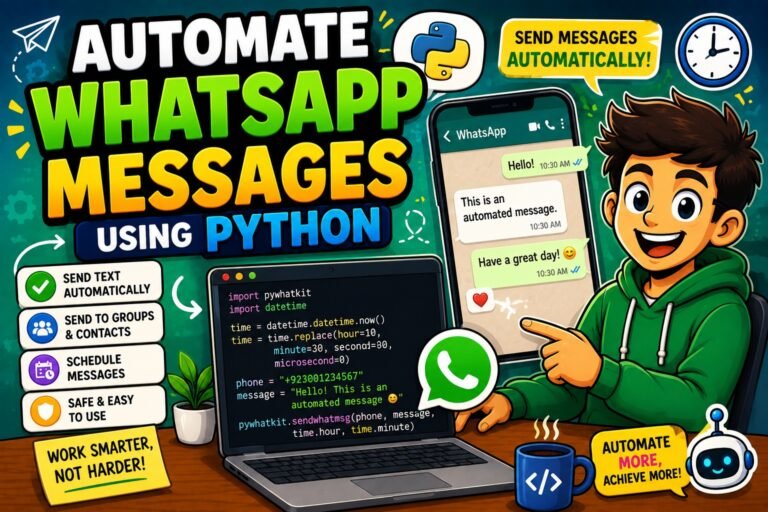
If you want to go further and automate messaging apps, the guide on how to automate WhatsApp messages using Python covers exactly that.
Scheduling Tasks with Python
A script that only runs when you click “Run” is only half automated. True automation means your scripts run on their own — while you sleep, while you work, and without you thinking about them.
Method 1: The schedule Library (Simplest for Beginners)
The schedule library lets you write human-readable scheduling logic in Python:
pip install schedule
import schedule
import time

def send_morning_report():
    print("Sending morning report...")
    # Add your email or file task here

def organize_downloads():
    print("Organizing Downloads folder...")
    # Add your file organization logic here

# Schedule tasks
schedule.every().day.at("08:00").do(send_morning_report)
schedule.every().monday.at("09:00").do(organize_downloads)
schedule.every(2).hours.do(lambda: print("Reminder: Stay hydrated!"))

print("Scheduler is running. Press Ctrl+C to stop.")
while True:
    schedule.run_pending()
    time.sleep(30)  # Check every 30 seconds
Method 2: APScheduler (More Power and Flexibility)
For production-grade scheduling, APScheduler (Advanced Python Scheduler) gives you:
- Timezone-aware scheduling
- Cron-style expressions
- Persistent jobs that survive script restarts
- Multiple job stores (memory, database)
pip install apscheduler
from apscheduler.schedulers.blocking import BlockingScheduler

scheduler = BlockingScheduler()

@scheduler.scheduled_job("cron", hour=8, minute=0)
def morning_job():
    print("Good morning! Running scheduled task...")

@scheduler.scheduled_job("interval", hours=2)
def interval_job():
    print("Running every 2 hours...")

scheduler.start()
Method 3: System-Level Schedulers (Most Reliable for Always-On Tasks)
For scripts that must run even when your Python process is not active, use your OS scheduler:
Windows — Task Scheduler:
- Open Task Scheduler → Create Basic Task
- Set the trigger (daily, weekly, at login, etc.)
- Set the action to run
python.exewith your script path as the argument
Mac/Linux — cron:
crontab -e
Add a line like:
0 8 * * 1 /usr/bin/python3 /home/user/scripts/weekly_report.py
This runs the script every Monday at 8:00 AM.
Real-World Python Automation Examples for Beginners
Here are practical, ready-to-use automation ideas — ranging from simple to more involved.
1. Daily Water Reminder
import time

def water_reminder():
    while True:
        print("Time to drink water! 💧")
        # On Windows, you can use: os.system('msg * Time to drink water!')
        time.sleep(7200)  # Remind every 2 hours

water_reminder()
2. Auto-Log Your Daily Work Hours
import time
import csv
from datetime import datetime

def log_time():
    task = input("What are you working on right now? ")
    with open("time_log.csv", mode="a", newline="") as file:
        writer = csv.writer(file)
        writer.writerow([datetime.now().strftime("%Y-%m-%d %H:%M"), task])
    print(f"Logged: {task}")

while True:
    log_time()
    time.sleep(3600)  # Ask every hour
At the end of each day, open time_log.csv in Excel to see exactly where your time went.
3. Auto-Generate and Email a Weekly Report
Combine file reading, data processing with pandas, and smtplib to:
- Read a weekly data file
- Compute totals and summaries
- Email the results automatically every Friday at 5 PM
This is a high-value automation for anyone who produces recurring reports at work.
4. Monitor a Website for Price Changes
import requests
from bs4 import BeautifulSoup
import time

URL = "https://example-store.com/product-page"
TARGET_PRICE = 49.99

while True:
    response = requests.get(URL, headers={"User-Agent": "Mozilla/5.0"})
    soup = BeautifulSoup(response.text, "html.parser")

    # Update the selector to match the page you are scraping
    price_tag = soup.find("span", class_="product-price")

    if price_tag:
        price = float(price_tag.text.strip().replace("$", ""))
        print(f"Current price: ${price}")

        if price <= TARGET_PRICE:
            print(f"Price dropped to ${price}! Time to buy.")
            break

    time.sleep(3600)  # Check every hour
5. Build a Simple Automated Chatbot
You can build a rule-based chatbot that answers repetitive questions automatically — great for personal projects or basic customer support. See the full guide on how to build a simple chatbot using Python for a step-by-step walkthrough.
6. Auto-Organize and Process Excel Data
import pandas as pd

# Load a sales spreadsheet
df = pd.read_excel("weekly_sales.xlsx")

# Add a computed column
df["Total Revenue"] = df["Units Sold"] * df["Price Per Unit"]

# Filter only high-value records
high_value = df[df["Total Revenue"] > 1000]

# Save the result
high_value.to_excel("high_value_sales.xlsx", index=False)
print(f"Saved {len(high_value)} high-value records.")
Common Mistakes Beginners Make in Python Automation
Learning from mistakes — especially other people’s mistakes — is one of the fastest ways to improve. Here are the most common traps beginners fall into.
Mistake 1: Automating a Task You Do Not Fully Understand Yet
Before you automate something, do it manually a few times and document each step. If you do not understand the process, your script will not either.
Mistake 2: Writing Scripts with No Error Handling
A script without error handling is not automation — it is roulette. If it fails silently at 2 AM, you will not know until damage is done.
import logging

logging.basicConfig(level=logging.INFO, filename="automation.log")

def run_task():
    try:
        logging.info("Task started.")
        # Your automation logic here
        logging.info("Task completed successfully.")
    except Exception as e:
        logging.error(f"Task failed: {e}")

run_task()
Always wrap your core logic in try/except and log the results.
Mistake 3: Hardcoding Passwords and API Keys
This is the most dangerous beginner mistake. Never do this:
# ❌ WRONG — Never hardcode credentials
password = "mySecretPassword123"
api_key = "sk-abc123xyz"
Do this instead:
# ✅ CORRECT — Load from environment variables
import os
password = os.environ.get("MY_PASSWORD")
api_key = os.environ.get("API_KEY")
Mistake 4: Not Testing on Copies First
Always test file automation scripts on a copy of your data — never the originals. One wrong shutil.rmtree() call can permanently delete files.
Mistake 5: Forgetting to Actually Schedule the Script
“It works when I run it” is not automation. Use schedule, APScheduler, cron, or Task Scheduler so your scripts run automatically without your involvement.
Mistake 6: Writing Monolithic, Unreadable Code
A 500-line script with no functions is a nightmare to debug. Break your code into small, focused functions — each doing one thing well. Think Lego blocks, not a tangled ball of string.
For writing cleaner and more Pythonic code, the guide on Python decorators made simple is a natural next step. And if your script is already broken and you need help, the step-by-step Python debugging guide will get you unstuck quickly.
Safety and Security Tips for Python Automation
Automation scripts often interact with sensitive data — files, emails, passwords, and APIs. Here is how to keep your scripts and your data safe.
1. Use Environment Variables for All Credentials
As shown above, never hardcode passwords, API keys, or tokens. Use environment variables or a .env file managed by the python-dotenv library:
pip install python-dotenv
from dotenv import load_dotenv
import os

load_dotenv()  # Loads variables from a .env file
password = os.getenv("MY_APP_PASSWORD")
Add .env to your .gitignore file so it is never accidentally committed to GitHub.
2. Always Enable PyAutoGUI’s Fail-Safe
Keep pyautogui.FAILSAFE = True in all GUI automation scripts. Moving your mouse to a screen corner will immediately halt the script if something goes wrong.
3. Verify Library Names Before Installing
Attackers publish malicious packages on PyPI with names very similar to popular libraries — a technique called typosquatting. Before running pip install, double-check the exact library name against the official documentation.
requests✅ — notrequestorrequestssschedule✅ — notschedulorschedulelibpyautogui✅ — notpyautogui2
4. Keep Python and All Libraries Updated
Outdated packages often contain known security vulnerabilities. Check for updates regularly:
pip list --outdated
pip install --upgrade package-name
5. Test Scripts on Copies of Your Data
Before running any script that moves, renames, or deletes files — test it on a duplicate folder. One wrong path can cause irreversible data loss.
6. Use Structured Logging, Not Print Statements
In any script meant to run unattended, replace print() with the logging module. Logs give you a record of what happened (and what went wrong) even when you are not watching.
import logging

logging.basicConfig(
    level=logging.INFO,
    format="%(asctime)s - %(levelname)s - %(message)s",
    filename="script.log"
)

logging.info("Script started.")
logging.warning("Unexpected file found — skipping.")
logging.error("Connection failed.")
7. Automate Only What You Have Permission to Automate
Before scraping a website or automating interactions with a third-party service, always read their Terms of Service. Ethical automation means respecting the rules of the systems you interact with.
Your Future Learning Path
Congratulations on reaching this point. Here is a clear roadmap for building on what you have learned.
Level 1 — You Are Here: Files, Emails & Scheduling
You can now write scripts that organize files, send automated emails, and run on a schedule. That is a genuinely useful skill set.
Level 2 — Web Scraping
Learn to extract data from websites using requests and BeautifulSoup. Track prices, monitor news, or collect data for research.
Recommended libraries: requests, beautifulsoup4, lxml
Level 3 — Browser Automation with Playwright
Automate real browser interactions — logging into sites, filling forms, downloading reports. Playwright is the modern, recommended tool for this.
Install: pip install playwright → playwright install
Level 4 — Data Automation with Pandas
Automate spreadsheet processing, report generation, and data cleaning at scale. This is where automation becomes genuinely powerful for business tasks.
Head to the Pandas tutorial for beginners to get started.
Level 5 — Build Web Apps to Trigger Your Scripts
Once your scripts are working well, you can build a simple web interface to control them from a browser. Flask is the easiest starting point for Python beginners.
See the complete Flask beginner’s guide to learn how.
Level 6 — APIs and AI-Powered Automation
Connect your scripts to APIs (weather, finance, Slack, Notion, Google Sheets) and integrate AI models to build intelligent automation pipelines that make decisions — not just repeat steps.
Keep Practicing Every Day
The single best way to improve your Python skills is consistent daily practice. Here are three resources to help:
- 50 Python Coding Questions for Practice — hands-on exercises to sharpen your core Python skills
- Top 20 Python Interview Questions for Beginners 2026 — prepare for real-world Python questions
- PyCodeRoom AI Task Generator — get a new Python challenge every day, tailored to your level
Frequently Asked Questions (FAQs)
Can a complete beginner automate tasks with Python?
Yes, absolutely. Python’s syntax is intentionally readable and beginner-friendly. With consistent practice, most beginners can write useful automation scripts within two to four weeks of starting.
What is the best Python library for automating daily tasks?
It depends on the task. For file management, use os and shutil. For email automation, use smtplib. For keyboard and mouse control, use PyAutoGUI. For scheduling, use schedule or APScheduler. For web data, use requests and BeautifulSoup.
Is Python automation safe for personal computers?
Yes — when done responsibly. Use virtual environments, never hardcode credentials, test scripts on copies of your data, and only install libraries from verified, trusted sources.
How long does it take to learn Python automation?
With 30 to 60 minutes of daily practice, most beginners can write working automation scripts within two to four weeks. Real productivity gains come within the first month.
Does Python automation work on Windows, Mac, and Linux?
Yes. Python is fully cross-platform. Libraries like PyAutoGUI, schedule, smtplib, and requests work on all major operating systems without modification.
What is the difference between schedule and APScheduler?
schedule is simpler and ideal for beginners — great for running functions daily or weekly. APScheduler is more powerful and supports timezones, cron expressions, persistent jobs, and integration with databases. Use schedule to start; move to APScheduler when you need more control.
Can Python automate web tasks as well as desktop tasks?
Yes. Using requests and BeautifulSoup for web scraping, and Playwright for full browser automation, Python can interact with websites, submit forms, extract data, and monitor pages — all automatically.
Conclusion
You now have everything you need to start automating your daily tasks with Python.
We covered what Python automation is and why it matters in 2026, the best libraries for every type of task, step-by-step setup, real working scripts for files, emails, mouse/keyboard control, and scheduling, common beginner mistakes and how to avoid them, security best practices, and a clear roadmap for where to go next.
Here is the most important thing to remember: automation is a skill you build one script at a time. You do not need to automate everything at once. Pick one task you find yourself doing manually, repeatedly, this week. Write a script for it. Schedule it. Then move on to the next one.
Every minute you invest in automation today is time you reclaim every single day going forward.
As your Python skills grow, you will also want to explore how clean code patterns like Object-Oriented Programming in Python can make your automation scripts more powerful, reusable, and maintainable.