
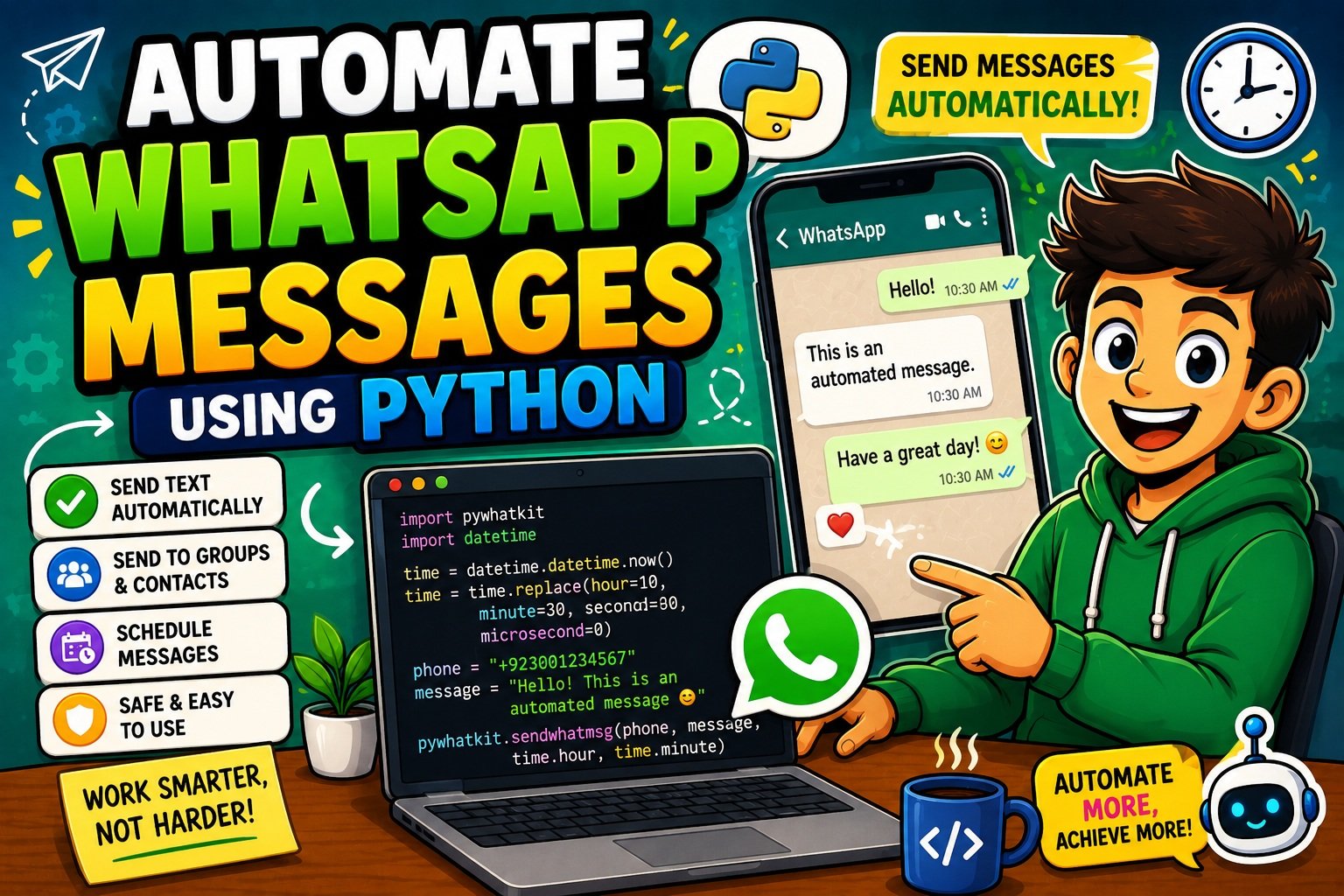
How to Automate WhatsApp Messages Using Python — Complete Beginner’s Guide (2026)
Imagine waking up every morning and your Python script has already sent a “Good Morning!” message to your friend, a meeting reminder to your team, and an order update to your customer — all without you touching your phone.
That’s the power of Python automation, and in this guide, you’ll learn exactly how to do it.
Automating WhatsApp messages using Python is one of the most practical and beginner-friendly automation projects you can build in 2026. Whether you want to send reminders, birthday greetings, daily team updates, or order notifications, Python gives you the tools to make it happen in just a few lines of code.
By the end of this tutorial, you will:
- Understand what WhatsApp automation is and how it works
- Install and set up the pywhatkit library
- Send your first automated WhatsApp message using Python
- Schedule messages for a specific time
- Send messages to groups and contacts
- Fix the most common errors beginners face
- Know the safety rules to keep your account safe
Let’s get started.
New to Python? Before diving in, make sure you understand the basics. Our guide on how to take user input in Python is a great warm-up if you are just starting out.
What Is WhatsApp Automation in Python?
WhatsApp automation means using a program or script to send WhatsApp messages automatically — without you manually typing or pressing send.
In Python, this works by controlling your web browser (specifically Google Chrome) to interact with WhatsApp Web (web.whatsapp.com). Python opens the browser, navigates to the correct chat, types your message, and clicks send — just like a human would, but automatically.
Two Main Approaches in 2026
| Approach | Best For | Difficulty | Cost |
|---|---|---|---|
| pywhatkit | Beginners, personal use, learning | Easy | Free |
| Meta WhatsApp Cloud API | Businesses, large-scale, production apps | Advanced | Paid |
For this tutorial, we focus on pywhatkit — it is beginner-friendly, free, and requires almost no setup beyond a working Python installation and a Chrome browser.
Quick note on ethics and legality: Always use WhatsApp automation responsibly. Sending unsolicited bulk messages violates WhatsApp’s Terms of Service and can get your account permanently banned. As of early 2026, Meta requires explicit opt-in consent from recipients before any business-initiated automated messaging. Use automation for personal productivity, team tools, and consensual notifications — not spam.
Tools and Libraries You Need
Before writing a single line of code, let’s make sure you have everything in place.
Required Tools
- Python 3.10 or higher — Download from python.org
- pywhatkit — the Python library that powers WhatsApp automation
- Google Chrome — pywhatkit controls Chrome directly
- A WhatsApp account — logged into WhatsApp Web
What Is pywhatkit?
pywhatkit is an open-source Python library built specifically for automating everyday tasks. Its most popular feature is WhatsApp automation — sending messages, scheduling them, sending images, and even messaging groups. It works by using PyAutoGUI (a keyboard and mouse automation tool) to control Chrome and type messages on WhatsApp Web.
Key functions you will use in this tutorial:
| Function | Purpose |
|---|---|
sendwhatmsg_instantly() | Send a message immediately |
sendwhatmsg() | Send a message at a scheduled time |
sendwhatmsg_to_group() | Send a scheduled message to a WhatsApp group |
sendwhatmsg_to_group_instantly() | Send an instant message to a group |
sendwhats_image() | Send an image to a contact or group |
⚠️ Important: pywhatkit requires a local Python installation on your own computer. It does not work in online Python compilers like Replit, Google Colab, or any cloud-based IDE. This is because it needs physical access to your keyboard and mouse hardware. If you try running it online, you will see a
ValueErrorrelated to PyAutoGUI.
Step 1: Install Python and pywhatkit
Install Python
- Go to python.org/downloads
- Download the latest Python 3.10+ version for your operating system
- During installation, check “Add Python to PATH” — this is critical
- Open your terminal or command prompt and verify:
python --version
You should see something like Python 3.12.3.
Install pywhatkit
Open your terminal or command prompt and run:
pip install pywhatkit
This will also install the required dependencies, including PyAutoGUI and Pillow. The installation may take a minute.
To confirm it installed correctly, run this quick test:
python -c "import pywhatkit; print('pywhatkit installed successfully!')"
If you see the success message, you are ready to go.
Tip: If you run into installation errors, our guide on how to debug Python code step by step will help you identify and fix the problem quickly.
Step 2: Set Up WhatsApp Web
This is a one-time setup step that takes less than 2 minutes.
- Open Google Chrome on your computer
- Go to web.whatsapp.com
- Open WhatsApp on your phone
- Tap Settings → Linked Devices → Link a Device
- Scan the QR code shown in Chrome using your phone camera
- Your WhatsApp chats will appear in the browser
Keep this browser tab open whenever you run your Python scripts. pywhatkit depends on an active WhatsApp Web session to send messages.
Step 3: Send Your First Automated WhatsApp Message
Now for the exciting part — let’s send your first automated message using Python.
Create a new file called whatsapp_bot.py and write the following code:
# whatsapp_bot.py

import pywhatkit

# Send an instant WhatsApp message
pywhatkit.sendwhatmsg_instantly(
    phone_no="+1234567890",   # Replace with recipient's number (include country code)
    message="Hello! This is my first automated WhatsApp message using Python 🎉",
    wait_time=15              # Seconds to wait before sending (gives browser time to load)
)

print("Message sent successfully!")
Code Breakdown
| Line | What It Does |
|---|---|
import pywhatkit | Loads the pywhatkit library into your script |
phone_no="+1234567890" | The recipient’s phone number with country code |
message="..." | The text message to send |
wait_time=15 | Time (in seconds) to wait for WhatsApp Web to open |
What Happens When You Run This?
- A Chrome window opens and navigates to WhatsApp Web
- The correct contact chat is opened
- Your message is typed automatically
- The message is sent
Country Code Reference
| Country | Code | Example Format |
|---|---|---|
| Pakistan | +92 | +923001234567 |
| India | +91 | +919876543210 |
| USA/Canada | +1 | +12025551234 |
| UK | +44 | +447911123456 |
Always include the country code. Forgetting it causes a
CountryCodeExceptionerror.
Step 4: Schedule WhatsApp Messages
One of the most useful features of pywhatkit is scheduled messaging — you can tell it exactly what time to send a message, and Python handles the rest.
# schedule_message.py

import pywhatkit

# Schedule a message to be sent at 6:30 PM (18:30 in 24-hour format)
pywhatkit.sendwhatmsg(
    phone_no="+1234567890",   # Recipient's number with country code
    message="Reminder: Team standup in 10 minutes!",
    time_hour=18,             # Hour in 24-hour format (18 = 6 PM)
    time_min=30               # Minute (must be at least 2-3 minutes from now)
)

print("Message scheduled successfully!")
Scheduling Rules You Must Follow
- Use 24-hour format —
time_hour=18means 6:00 PM, not 6 AM - Schedule at least 2–3 minutes ahead — pywhatkit needs time to open the browser and load WhatsApp Web. If you set it too close, it will throw an error
- Never write
time_min=08— Python treats leading zeros as octal numbers and raises aSyntaxError. Usetime_min=8instead - Keep your computer on and Chrome open — pywhatkit needs to physically control your browser
Sending Multiple Scheduled Messages
You can loop through a list of contacts and schedule messages for each one:
import pywhatkit
import time

contacts = [
    ("+1234567890", "Hey Alice, meeting at 3 PM today!"),
    ("+0987654321", "Hey Bob, don't forget the standup!"),
]

for phone, message in contacts:
    pywhatkit.sendwhatmsg_instantly(
        phone_no=phone,
        message=message,
        wait_time=20
    )
    time.sleep(10)  # Wait 10 seconds between messages to avoid rate issues

print("All messages sent!")
Working with contacts stored in a file? Learn how to read and write text files in Python to load your contact list from an external
.txtfile instead of hardcoding it in your script.
Step 5: Send Messages to WhatsApp Groups
Sending automated messages to a group is just as simple, but you need the group’s unique ID first.
How to Find a Group ID
- Open WhatsApp Web in Chrome
- Click on the group you want to message
- Look at the URL in the address bar — it will look like:
https://web.whatsapp.com/accept?code=AB123CDEFGHijklmn - Copy the code after
code=— that is your group ID
Send a Scheduled Message to a Group
# group_message.py

import pywhatkit

# Send a message to a WhatsApp group at 9:00 AM
pywhatkit.sendwhatmsg_to_group(
    group_id="AB123CDEFGHijklmn",  # Replace with your actual group ID
    message="Good morning team! Daily standup starts in 5 minutes 🚀",
    time_hour=9,
    time_min=0
)

print("Group message scheduled!")
Send an Instant Message to a Group
import pywhatkit

pywhatkit.sendwhatmsg_to_group_instantly(
    group_id="AB123CDEFGHijklmn",
    message="Quick update: the server is back online ✅"
)
Send an Image to a Contact or Group
import pywhatkit

# Send an image to a contact
pywhatkit.sendwhats_image(
    receiver="+1234567890",
    img_path="report.jpg",     # File must be JPG format
    caption="Here is today's sales report 📊"
)
Note: PNG format is not currently supported by pywhatkit. Use JPG or JPEG images only.
Common Errors and How to Fix Them
Even experienced developers run into errors when working with pywhatkit. Here are the most common ones and their solutions:
Error 1: CountryCodeException
pywhatkit.mainfunctions.CountryCodeException: Country code missing from phone number
Cause: You forgot to include the country code in the phone number.
Fix: Always format phone numbers with the country code:
# Wrong
phone_no = "3001234567"

# Correct
phone_no = "+923001234567"
Error 2: SyntaxError — Leading Zeros
SyntaxError: leading zeros in decimal integer literals are not permitted
Cause: Writing time_min=08 — Python doesn’t allow integer literals with leading zeros.
Fix:
# Wrong
pywhatkit.sendwhatmsg(phone_no, message, time_hour=9, time_min=08)

# Correct
pywhatkit.sendwhatmsg(phone_no, message, time_hour=9, time_min=8)
Error 3: ValueError — PyAutoGUI Not Supported
ValueError: PyAutoGUI cannot be used in this environment
Cause: You are running the script in an online IDE (Replit, Colab, etc.).
Fix: Run the script on your local machine only. Install Python locally and run from your terminal.
Error 4: Slow Internet Warning
Warning: INTERNET IS SLOW, extraction of information might take longer
Cause: Your internet connection is too slow for pywhatkit to load WhatsApp Web in time.
Fix: Ensure you have a stable internet connection. You can also increase the wait_time parameter:
pywhatkit.sendwhatmsg_instantly(phone_no, message, wait_time=30)
Error 5: Pillow/Zlib Installation Error
The headers or library files could not be found for zlib
Fix: Upgrade pip and reinstall Pillow:
pip install --upgrade pip
pip install --upgrade Pillow
For more Python error-fixing strategies, bookmark our guide on how to fix IndentationError in Python — one of the most common pitfalls for beginners.
Best Practices and Safety Tips
Automation is powerful, but it comes with responsibility. Follow these rules to keep your account safe and your automation ethical.
✅ Do These
- Get consent first — Only send automated messages to people who expect to hear from you. As of 2026, Meta requires explicit opt-in before any business-initiated automated messages.
- Use try/except blocks — Always wrap your pywhatkit calls in error handling to prevent your script from crashing:
import pywhatkit

try:
    pywhatkit.sendwhatmsg_instantly(
        phone_no="+1234567890",
        message="Hello from Python!",
        wait_time=15
    )
    print("Message sent successfully!")
except Exception as e:
    print(f"An error occurred: {e}")
- Store phone numbers in external files — Never hardcode a large contact list inside your script. Store it in a
.txtor.csvfile and read it dynamically. - Add delays between messages — Use
time.sleep()between multiple sends to avoid triggering WhatsApp’s spam detection. - Keep Chrome open and WhatsApp Web logged in — pywhatkit will fail if the session has expired.
❌ Avoid These
- Do not send bulk unsolicited messages — This is spam and can result in a permanent account ban.
- Do not share sensitive data in automated messages — Phone numbers, passwords, or financial details should never be sent over automated scripts.
- Do not run pywhatkit scripts unattended on shared computers — WhatsApp Web remains logged in, which is a security risk.
- Do not use this for commercial marketing without a proper WhatsApp Business API setup — pywhatkit is for personal/learning use only.
Real-World Automation Examples
Now that you know the basics, here are five practical projects you can build with Python WhatsApp automation:
1. Birthday Reminder Bot
Send personalized birthday messages to your contacts automatically each morning.
import pywhatkit
from datetime import datetime

# Dictionary of contacts and their birthdays
birthdays = {
    "+1234567890": "14-05",  # May 14
    "+0987654321": "20-08",  # August 20
}

today = datetime.now().strftime("%d-%m")

for phone, birthday in birthdays.items():
    if birthday == today:
        try:
            pywhatkit.sendwhatmsg_instantly(
                phone_no=phone,
                message="🎂 Happy Birthday! Wishing you an amazing day! 🎉",
                wait_time=15
            )
            print(f"Birthday message sent to {phone}")
        except Exception as e:
            print(f"Failed to send to {phone}: {e}")
2. Daily Team Standup Reminder
Automatically notify your team group 10 minutes before the daily meeting.
import pywhatkit

pywhatkit.sendwhatmsg_to_group(
    group_id="YOUR_GROUP_ID_HERE",
    message="🔔 Daily standup starts in 10 minutes. Please join on time!",
    time_hour=9,
    time_min=50
)
3. Student Grade Alert System
After results are published, notify each student with their individual grade.
import pywhatkit
import time

# Each tuple: (phone_number, student_name, grade)
students = [
    ("+1234567890", "Ali", "A"),
    ("+0987654321", "Sara", "B+"),
]

for phone, name, grade in students:
    try:
        pywhatkit.sendwhatmsg_instantly(
            phone_no=phone,
            message=f"Hi {name}! Your exam result is: {grade}. Congratulations! 🎓",
            wait_time=20
        )
        print(f"Result sent to {name}")
        time.sleep(15)
    except Exception as e:
        print(f"Error sending to {name}: {e}")
4. Personal Daily Habit Tracker
Send yourself motivational reminders every morning to keep your habits on track.
import pywhatkit

pywhatkit.sendwhatmsg(
    phone_no="+YOUROWNNUMBER",
    message="🌅 Good morning! Don't forget: workout, read 10 pages, drink 8 glasses of water. You've got this! 💪",
    time_hour=7,
    time_min=0
)
5. E-commerce Order Notification
Notify customers when their order has been dispatched.
import pywhatkit
import time

orders = [
    ("+1234567890", "Ahmed", "ORD-2026-001"),
    ("+0987654321", "Fatima", "ORD-2026-002"),
]

for phone, name, order_id in orders:
    try:
        pywhatkit.sendwhatmsg_instantly(
            phone_no=phone,
            message=f"Hi {name}! 📦 Your order {order_id} has been dispatched and is on its way to you. Thank you for shopping with us!",
            wait_time=20
        )
        print(f"Notification sent for {order_id}")
        time.sleep(15)
    except Exception as e:
        print(f"Failed to notify for {order_id}: {e}")
Want to take your automation projects further? Learning how to send emails automatically using Python will let you combine WhatsApp and email notifications into one complete notification system.
Limitations of WhatsApp Automation with pywhatkit
pywhatkit is fantastic for learning and personal use, but it does have real limitations you should know:
| Limitation | Details |
|---|---|
| Requires PC to be on | Your computer must be running and awake for pywhatkit to work — it is not suitable for server-side 24/7 automation |
| Requires browser control | It physically controls Chrome — your browser will pop open every time a message is sent |
| No cloud/server support | Cannot run in Replit, Colab, or any cloud IDE — local machine only |
| PNG images not supported | Only JPG/JPEG images can be sent |
| 2–3 minute minimum delay | You cannot send truly real-time scheduled messages — a buffer is always needed |
| Account ban risk | Misuse for spam can lead to WhatsApp banning your number permanently |
| WhatsApp Web UI changes | If WhatsApp updates its web interface, pywhatkit may temporarily break until updated |
| Not for production use | For real businesses, the Meta WhatsApp Cloud API is the correct tool |
What About the Meta WhatsApp Cloud API?
For businesses and production-level applications, the WhatsApp Cloud API by Meta is the professional choice. It is:
- Hosted and maintained by Meta
- Reliable, scalable, and supports rich media
- Requires business verification and template approval
- Supports proper opt-in/opt-out management
As of January 2026, Meta has also tightened its API policies — general-purpose AI chatbots are no longer permitted. Only task-specific business automation flows (support bots, booking bots, order bots) are allowed.
Beginner Mistakes to Avoid
Here is a quick checklist of the most common mistakes beginners make with pywhatkit:
- ❌ Forgetting the country code in phone numbers
- ❌ Running the script in an online compiler instead of locally
- ❌ Not logging into WhatsApp Web before running the script
- ❌ Scheduling messages too close to the current time (less than 2 minutes ahead)
- ❌ Using
08instead of8for minutes with a leading zero - ❌ Closing Chrome while the script is running
- ❌ Sending too many messages too quickly without delays (triggers spam detection)
- ❌ Using PNG images instead of JPG
Your Future Learning Path
Mastering WhatsApp automation is just one step in your Python journey. Here’s a roadmap of what to learn next:
Level 1 — Strengthen Your Python Foundation
If you are still getting comfortable with Python basics, try our 50 Python coding questions for practice to sharpen your skills through real problems.
Level 2 — Learn Selenium for Advanced Browser Automation
pywhatkit is built on browser control concepts. Learning Selenium gives you much more flexibility and control over browser-based automation tasks.
Level 3 — Handle Large Contact Lists with Pandas
As your automation projects grow, you will want to manage contacts from CSV or Excel files. Our Pandas tutorial for beginners teaches you exactly how to work with structured data in Python.
Level 4 — Build a Web Dashboard with Flask
Imagine controlling your WhatsApp bot from a web interface — enter phone numbers, type messages, and hit send all from a browser form you built yourself. Our complete Flask beginners guide is the perfect next step.
Level 5 — Write Cleaner Code with OOP
Once your automation scripts get complex, structuring them using classes and objects keeps everything organised and maintainable. Learn how in our Object-Oriented Programming in Python guide.
Level 6 — Explore the WhatsApp Cloud API
For production use or business applications, the Meta WhatsApp Cloud API is the professional path. It requires learning about REST APIs, authentication tokens, and message templates.
Preparing for your first developer job? WhatsApp automation projects make excellent portfolio pieces. Check out our Top 20 Python Interview Questions for Beginners (2026) to get interview-ready.
Frequently Asked Questions (FAQs)
Q1: Can I automate WhatsApp messages using Python for free?
Yes! pywhatkit is completely free and open-source. You only need a local Python installation (also free), Google Chrome, and an active WhatsApp account.
Q2: Will I get banned for automating WhatsApp messages?
If you use automation responsibly — for personal reminders, team notifications, or with full recipient consent — the risk is very low. However, using it to send bulk unsolicited messages violates WhatsApp’s Terms of Service and can result in a temporary or permanent account ban.
Q3: Does pywhatkit work on Windows, Mac, and Linux?
Yes, pywhatkit works on all three major operating systems as long as Python 3.10+ and Google Chrome are installed locally.
Q4: Can I run pywhatkit in Google Colab or Replit?
No. pywhatkit requires physical access to your keyboard and mouse hardware through PyAutoGUI, which is not available in cloud-based IDEs. You must run it on your local computer.
Q5: What is the difference between pywhatkit and the WhatsApp Cloud API?
pywhatkit is beginner-friendly, free, and works by controlling WhatsApp Web through Chrome — great for personal projects and learning. The Meta WhatsApp Cloud API is a professional, server-side solution built for businesses that need reliable, scalable messaging — it requires business verification and has associated costs.
Q6: Can I send images or files with pywhatkit?
Yes! The sendwhats_image() function lets you send JPG images to contacts and groups. Note that PNG format is not currently supported — convert your images to JPG before sending.
Q7: How can I send recurring daily messages?
pywhatkit itself handles one-time scheduling. To run your script automatically every day at a set time, combine it with:
schedulelibrary in Python for simple recurring tasks- Task Scheduler (Windows) or cron jobs (Mac/Linux) for system-level scheduling
Conclusion
You’ve now learned everything you need to automate WhatsApp messages using Python — from installation and setup to sending scheduled messages, group notifications, and images.
Here’s a quick recap of what you covered:
- ✅ Set up Python and installed pywhatkit
- ✅ Connected WhatsApp Web and sent your first automated message
- ✅ Scheduled messages using 24-hour time format
- ✅ Sent messages to groups using group IDs
- ✅ Fixed the most common errors beginners face
- ✅ Followed safety and ethical best practices
- ✅ Explored five real-world automation examples